Friday, June 3, 2011
Adsense Revenue Sharing Feature in Blogger Blogs
Posted by prem | Friday, June 3, 2011 | Category:
|
0
comments
This cool trick shows how to implement Google Adsense Revenue sharing feature in blogger(blogspot) blogs:
Do you run a blogger blog which is controlled by multiple authors ? Are you looking for an idea to share revenue with your co-authors? If so, then this nice Blogger trick solves all your problems.
First, What is Adsense Revenue Sharing ?
Suppose, you're the administrator of a blogger blog which has multiple guest authors. If you want to share the blog revenue with them, normally you divide the total revenue based on the Post count or Pageviews. But, most of the time it may not be accurate because CPC and CPM varies from post to post depending on the keywords,etc. So, it may not encourage the team members to post more stuff :(
But, with this cool trick, you can share the blog revenue with them more precisely because every author gets his own ad displayed in all the posts he/she does.
So, lets see how to add this feature to your blog..
Do you run a blogger blog which is controlled by multiple authors ? Are you looking for an idea to share revenue with your co-authors? If so, then this nice Blogger trick solves all your problems.
First, What is Adsense Revenue Sharing ?
Suppose, you're the administrator of a blogger blog which has multiple guest authors. If you want to share the blog revenue with them, normally you divide the total revenue based on the Post count or Pageviews. But, most of the time it may not be accurate because CPC and CPM varies from post to post depending on the keywords,etc. So, it may not encourage the team members to post more stuff :(
But, with this cool trick, you can share the blog revenue with them more precisely because every author gets his own ad displayed in all the posts he/she does.
So, lets see how to add this feature to your blog..


Since Twitter is getting huge popularity these days, adding a cool Retweet Button to your Blogger blog posts can easily get you some decent amount of traffic and promote your content/products to large people in quick time. If you have tons of followers, then you can easily milk it.. ;)
So, here is how to add a nice Retweet button to your blogspot blog posts:
There are two versions of retweet buttons.. one is the default one (looks like digg button) and the other one is Compact version which can fit in small space..

So, here is how to add a nice Retweet button to your blogspot blog posts:
There are two versions of retweet buttons.. one is the default one (looks like digg button) and the other one is Compact version which can fit in small space..

I am very much excited to launch our new section here in Blogger Tricks... "Blogger Video Tutorials". To make sure that you benefit in the best manner from this site, I have been working on this passionately for the past few days and have done about 25 video tutorials. Watch out for more interesting tutorials in the next few days.
Why video tutorials?
Well, to give you guys a fantastic multimedia experience where you can learn four times faster than reading lengthy texts. I saw the amazing result myself; reason enough to awaken myself to the fantastic world of video tutorials. Last year, I had uploaded a blogger tutorial to Youtube, just a basic video with poor quality. But people liked what they saw and I ended up with 50k views and 60+ comments. This gives me a strong reason to believe that video tutorials rock big time and I am going to make sure that all of my readers get the best.
So now, just sit coolly and watch the steps, maximize your learning experience and implement what you’ve learnt in your blog and watch your blog traffic and revenue rise.
As you know, millions of people use their mobile phones to access internet. The mobile internet speed is also very fast these days with 3G's , mobile apps,etc.
From this, we can say many of your readers are coming to your blog through mobile phones..But, if you don't make your blog mobile friendly, .you may lose all your mobile readers because in a mobile phone, a normal blog takes lot of time to load and there are other issues that your site not fitting properly in the mobile screen.
So, here is how to make your Blogger (blogspot) blog mobile internet friendly..
Sign into your Blogger account > Design > Edit html
Find this line..
Paste this code below that line...
Save the Changes!
novinture blogger template FalknerPress Blogger Template Turnout Mag Blogger Template SchemerMag japanese fleur + View All Templates + How to Install ? Friends Best Blog Host Diabetes Information Web Hosting Reviews Blogger Templates Numbered Page Nagivation hack for Blogger
Posted by prem | | Category:
|
0
comments
What is Numbered Page Navigation ?
In blogger, by default, you see Older posts, Newer Posts links near the bottom of the page which is useful to your blog visitors to navigate to other posts of your blog. But, the problem is.. people hardly notice those newer and older posts links.. which means.. less pageviews to your blog.
So, to increase your blog pageviews you can use this cool looking, advanced numbered page navigation to your blog.
So, how to add this to your Blogger blog ?
(first backup your blog template before editing anything)
1. Sign into your Blogger account » Settings » Formatting
Choose the number of posts you want to display on homepage

2. Go to Design » Edit html » tick the expand widget templates
Scroll down to the bottom of the template code and find this
PASTE this code above that line
In that above code, Edit the part that I highlighted in red color according to Step 1. It determines the number of posts that to be displayed per page. (Make sure, the number you set is same like the one in Step 1)
3. Control + F and search for all the occurrences of this code
'data:label.url'and replace it with this
'data:label.url + "?&max-results=5"'Again, the number in the above line depends on the number you set in the STEP 1.
4. Now, the styling part.. I've made x styles.. you can choose the one you wish..
(i) Default

Code
.showpageArea a {

text-decoration:underline;

background: #ffffff;

padding: 10px 10px 10px 10px;


}

.showpageNum a {

text-decoration:none;

border: 1px solid #cccccc;

border-top: 1px solid #cccccc;

margin:0 3px;

padding:3px;

}

.showpageNum a:hover {

border: 1px solid #cccccc;

background-color:#cccccc;

}

.showpagePoint {

color:#333;

text-decoration:none;

border: 1px solid #cccccc;

background: #cccccc;

margin:0 3px;

padding:3px;

}

.showpageOf {

text-decoration:none;

padding:3px;

margin: 0 3px 0 0;

}

.showpage a {

text-decoration:none;

border: 1px solid #cccccc;

padding:3px;

}

.showpage a:hover {

text-decoration:none;

}

.showpageNum a:link,.showpage a:link {

text-decoration:none;

color:#333333;

}
Copy the above code. Find this line and paste that code ABOVE IT.
]]>Save the changes.
Japanese Fleur" BLOGGER TEMPLATE - FREE DOWNLOAD:
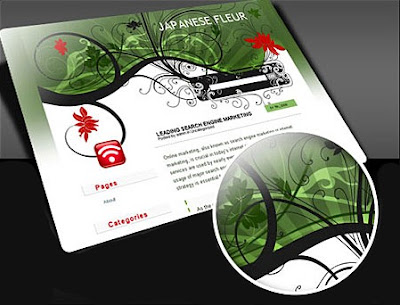
Here is my another excellent blogger beta template.The template was originally a wordpress theme designed by Lorelie for wordpress.org users.Now, I converted it to the XML Blogger beta template.
You can view the Live Demo here or look at the above screenshot and download this beautiful template here.

Here is my another excellent blogger beta template.The template was originally a wordpress theme designed by Lorelie for wordpress.org users.Now, I converted it to the XML Blogger beta template.
You can view the Live Demo here or look at the above screenshot and download this beautiful template here.


Another STUNNING Magazine Style Blogger Template "Novinture"
Posted by prem | | Category:
|
0
comments

LIVE DEMO | DOWNLOAD
It's been quite a while since I've released any new blogger template...because of my studies,etc..but, Here I'm ...again back with another Stunningly looking Magazine Style Blogger Template.."Novinture".
I've did so many blogger templates sofar, but for me this one is the best of all.. I love the color combination..looks very professional and cool... and ofcourse with an amazing slideshow feature.
Here are some of the features :
- Top Nav links
- Stunning Slideshow
- Retweet button
- Facebook Share button
- 4 Column footer
- Email Subscriptions
- Feed Counter
- Built in Search Box
- Wonderful Comment section (with avatars)
- Most Wanted feature.. Page Navigation Enabled
- Automatic Thumbnails on homepage
- Automatic Post summaries on homepage
- Advertisement banner ready (on header)
- many more.....
Page Navigation Ready!

Clean and Professional Comments Section

And the best thing is..its very easy to install.
Here are Installation Instructions:
(Before you do this, first backup your current template)
1. Download the template and Sign into Blogger » Design » Edit html
and Upload the template file (xml file) and Save it.
2. Editing Top Navigation Links...
To Edit the top Nav links (Home, About Us, Photos,etc..)
Sign into Blogger » Design » Edit html » Tick the "Expand Widget Templates"
Control + F (to search)
Find these lines
Blog Tips
Edit the URL's and their respective Anchor Text's to whatever you like.
3. Editing the Feedburner links
Suppose, if your Blog's Feedburner url is
http://feeds2.feedburner.com/YOURBLOGSearch for "BloggerTricksdotcom" in the template code.. (it will appear 5 times)
and replace every "BloggerTricksdotcom" with "YOURBLOG"
Save the template!
Subscribe to:
Posts (Atom)